← All features

You choose the access

Pick what each pilot shares at login, widen it later on the Access screen
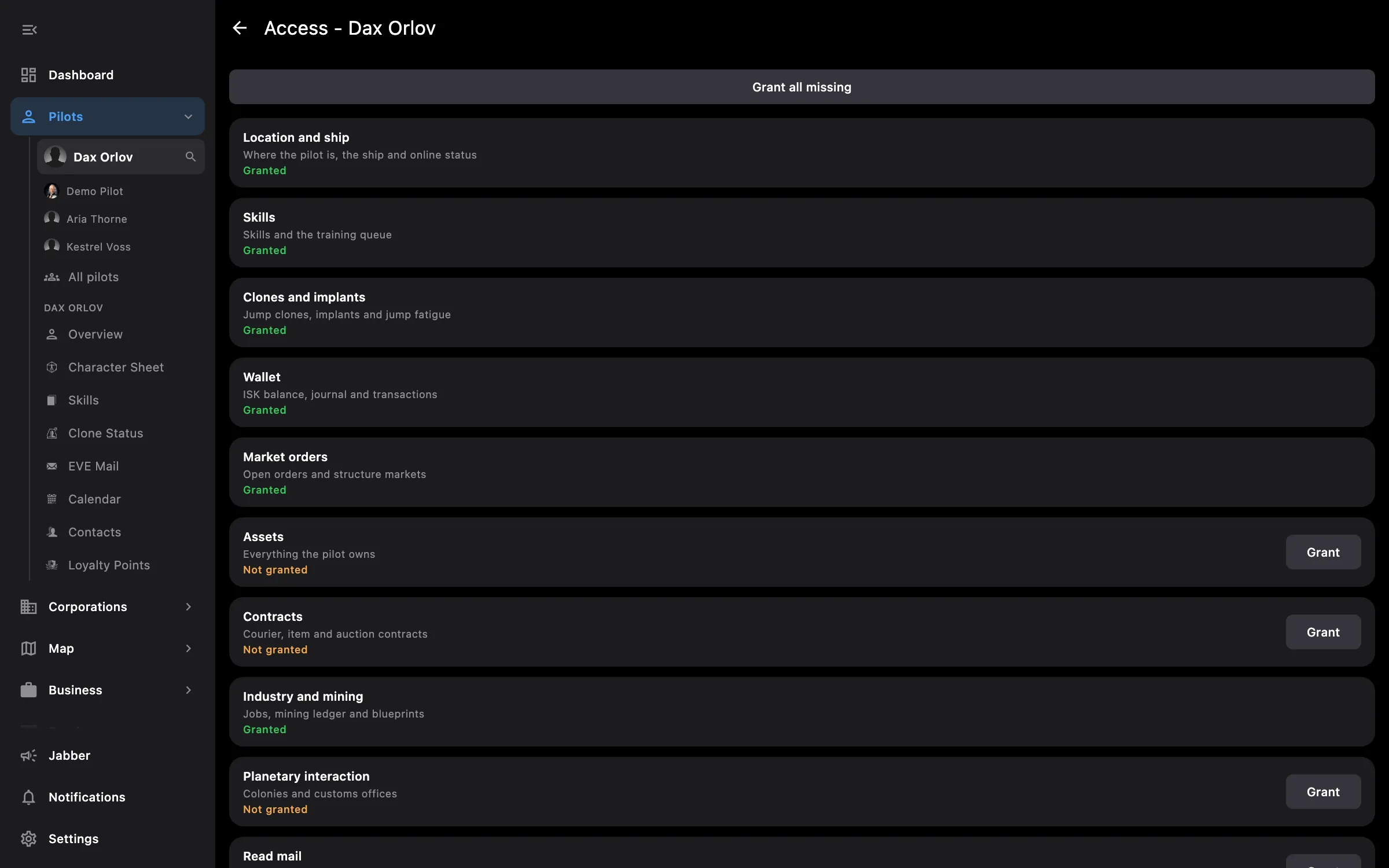
Access screen: granted areas and areas still to grant
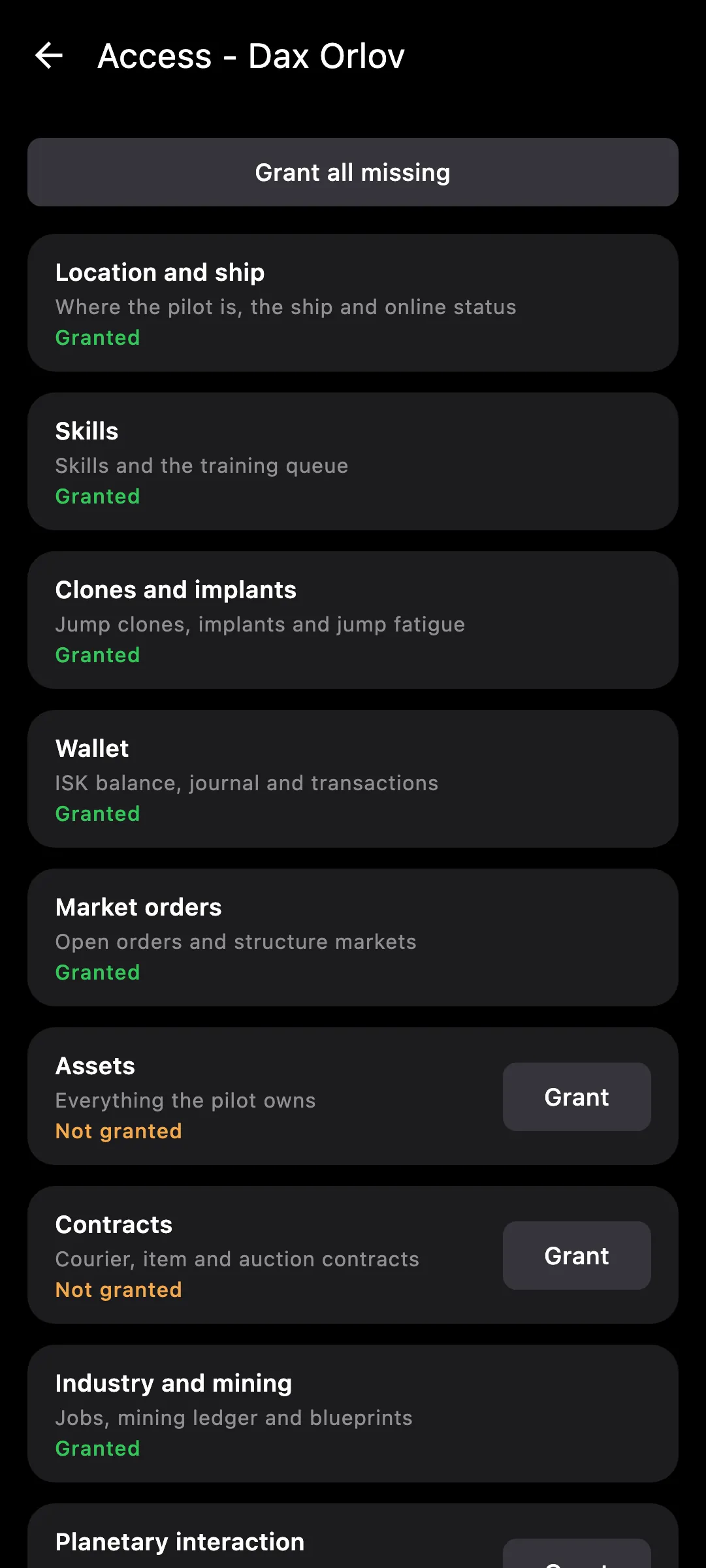
Access screen on a phone: granted areas and areas still to grant

What you get

When you log a pilot in, you decide what Eve Empire may read: everything, the basics, or a list of areas you tick. Access is grouped by area rather than by raw ESI scope, and the Access screen shows per pilot what is granted and what is still missing.

  • Three choices at login: Everything, Basics, or Choose areas from a checklist
  • Areas such as Skills, Clones, Wallet and market, Assets, Industry and mining, Planetary, Mail and Contacts
  • The Access screen lists granted and missing areas per pilot, with Grant per area and Grant all missing
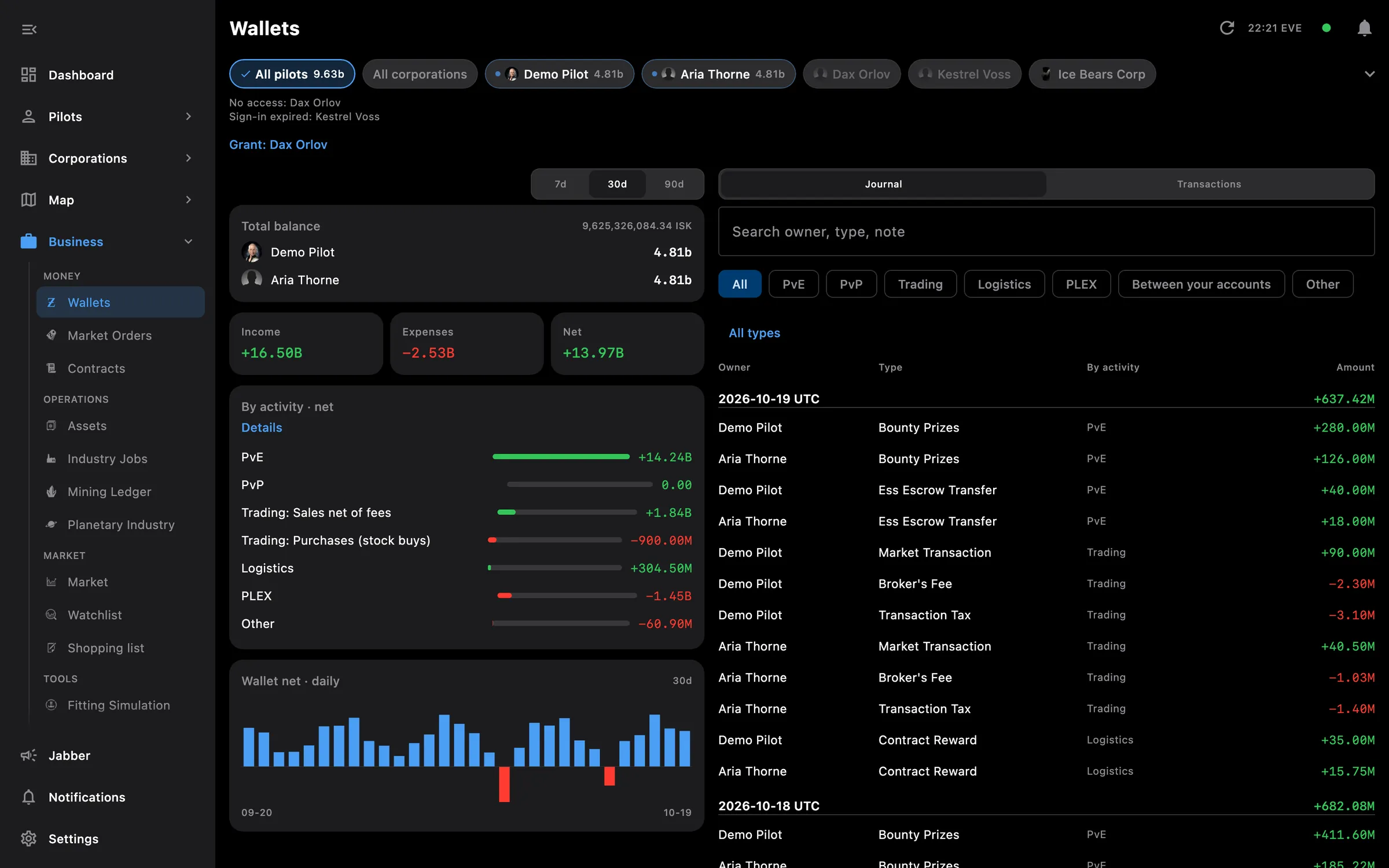
  • A screen whose area is missing shows one Access not granted card with a Grant button, never an empty table
  • The all-pilot screens list pilots that lack an area, with a Grant link, and leave them out of All
  • Granting more later keeps what was already granted; logging a pilot in again never removes access
  • EVE cannot narrow a grant: to take access away, remove the pilot and add them again, or revoke it in your EVE account
  • Corporation access is requested only when you add a corporation; no pilot preset includes it
  • Every request uses the pilot's own sign-in, and sign-in tokens are kept in your device's secure storage
  • A pilot whose sign-in expired is marked for re-sign-in only when EVE rejects it, not on a failed retry

Tip: to grant an area later, open the pilot, then Access, tick the area and sign in once more.

Access needed

Needs no access to your EVE account.

You pick the areas when you log a pilot in and can add more later on the Access screen. How access works →

How to use it

  1. Open Pilots and press + to add a pilot
  2. Pick Everything, Basics or Choose areas, then sign in on the EVE website that opens
  3. Later, open the pilot and then Access: each area reads Granted or Not granted, with Grant beside it
  4. Press Grant, or Grant all missing, and sign in once more; EVE adds the new areas to the old ones
  5. On a screen that reads Access not granted, press Grant right there

Phone and PC

On the phone — the EVE sign-in page opens and comes straight back to the app when you finish. The Access screen is the same.

On the PC — sign-in opens in your browser and returns to the app on its own. If the EVE page says Request Too Long, the waiting screen explains why and lets you copy the link to open it in a private window.
See also

Something missing? Recent changes are in the patch notes, and you can ask on Discord.